Edit Translations
Learn how to edit and manage translations in Wordiy.
Accessing the Translation Editor
Navigate to your project and open the Keys page. Each row shows the key name on the left and its current translation on the right.
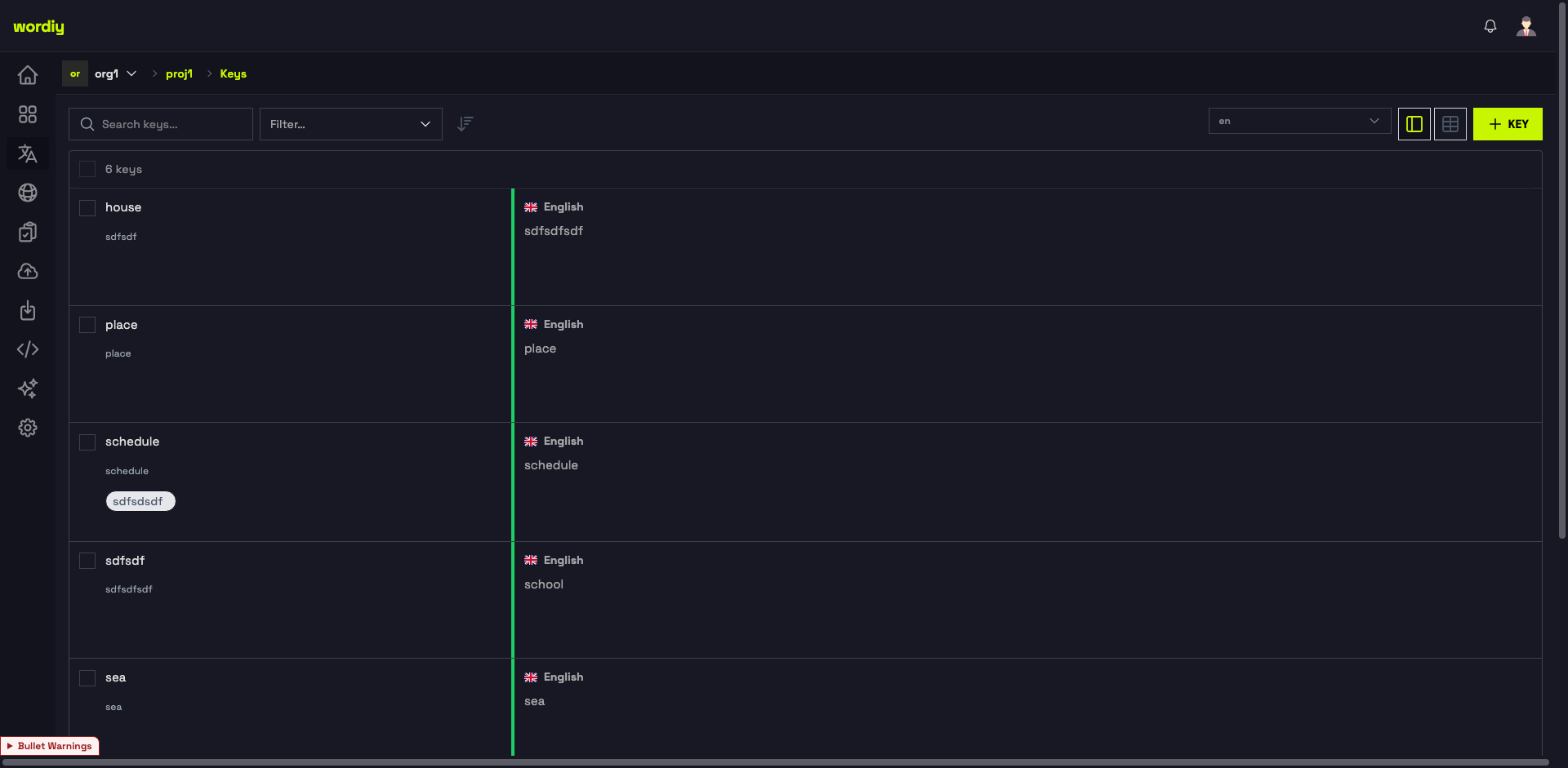
Open a Translation
- Navigate to your Project
- Click on any translation row to open the inline editor
- The editor opens on the right side of the screen
Translation View
The translations view shows:
- Source language (original string) on the left
- Target language (translation) on the right
- Comments for context and notes
- History tracking all changes
- Status (pending, approved, rejected)
Translation Editor Interface
Click any translation to open the editor. The right panel shows Machine Translation suggestions, Comments, Tasks, and History.
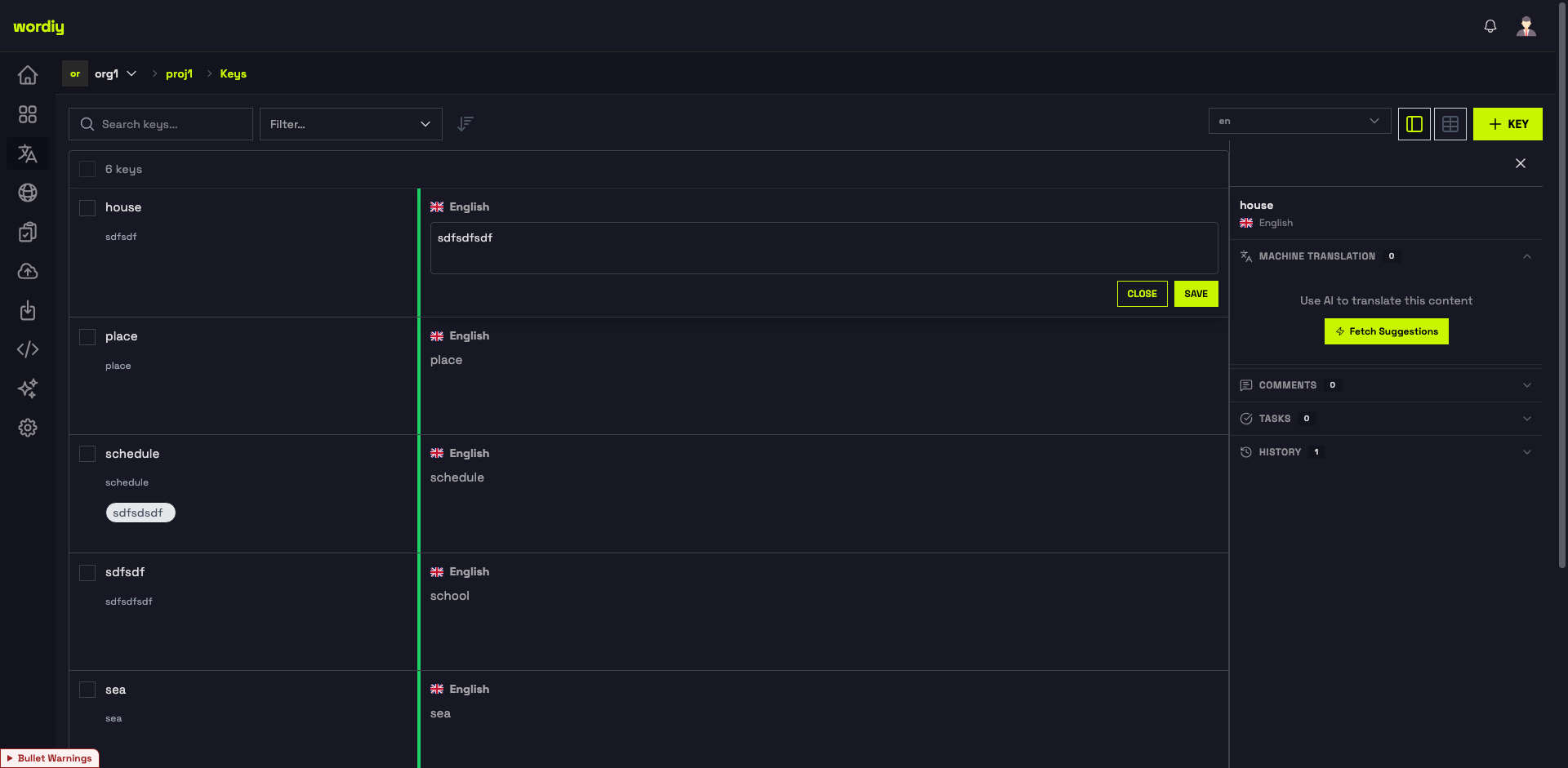
Main Editing Panel
The editor includes:
- Translation Input Field — Where you type the translation
- Character Counter — Shows current/maximum characters (if limit is set)
- Placeholder Indicators — Visual markers for dynamic content
- AI Suggestions — Machine translation suggestions
- Translation Memory — Similar translations from past projects
Editor Modes
Visual Mode (Default)
- Displays placeholders as highlighted boxes
- Easy to click and insert placeholders
- Best for most translators
- Shows formatted text as it appears
Code Mode
- Shows raw text with placeholder syntax
- Useful for complex formatting
- Allows direct text manipulation
- Good for advanced editors
Toggle between modes: Click the "Code/Visual" button in the editor
Working with Placeholders
Placeholder Types
Variable Placeholders
Hello {name}!
- Replaced with dynamic content
- Common in user names, dates, numbers
ICU Placeholders
{count, plural, one {# item} other {# items}}
- Handle pluralization rules
- Support conditional logic
Inserting Placeholders
In Visual Mode:
- Click where you want the placeholder
- Click the placeholder from the suggestions
- It's automatically inserted
In Code Mode:
- Type the placeholder syntax directly
- Example:
{variable_name} - Save to validate
Viewing Missing Placeholders
If a placeholder is missing:
- Look for the red warning indicator
- Click on the missing placeholder
- Choose to insert it or continue
Plural Translations
When a string has plural forms, each form appears in a separate field:
One item: "1 item"
Other items: "{count} items"
Each field shows:
- Example number — How many items (1, 5, etc.)
- Plural form — The grammatical form
- Translation field — Where you type
Tips for plural translations:
- Use consistent variable names
- Keep structure similar across forms
- Test with example numbers
Character Limits
Some strings have character limits (e.g., UI buttons, short labels):
Translation: "Save"
Limit: 10 characters
Current: 4/10 ✓
When Over Limit
- The counter turns red
- A warning appears
- You can still save with confirmation
- But it may break the UI layout
Best practices:
- Keep translations within limits when possible
- Use shorter synonyms
- Abbreviate when appropriate
Comments & Context
Viewing Comments
Comments provide context from developers:
- Purpose — Why this string exists
- Context — Where it appears in the app
- Examples — How the string is used
Leaving Comments
- Click the Comments panel on the right side of the editor
- Type your question or note
- Click Post
- Others can reply to your comment
Good comments:
- Ask for clarification
- Point out translation issues
- Suggest improvements
- Report context problems
Translation Status
Each translation can have a status:
| Status | Meaning | Who Can Set |
|---|---|---|
| Pending | Waiting to be reviewed | Translator |
| Approved | Verified correct | Reviewer |
| Rejected | Needs changes | Reviewer |
| In Progress | Currently being worked on | Translator |
Submitting for Review
- Complete your translation
- Click Submit for Review
- Choose reviewers (optional)
- Add a message
- Submit
Translation Memory
The right panel shows Machine Translation suggestions. Click Fetch Suggestions to get AI-powered translations for the current string.
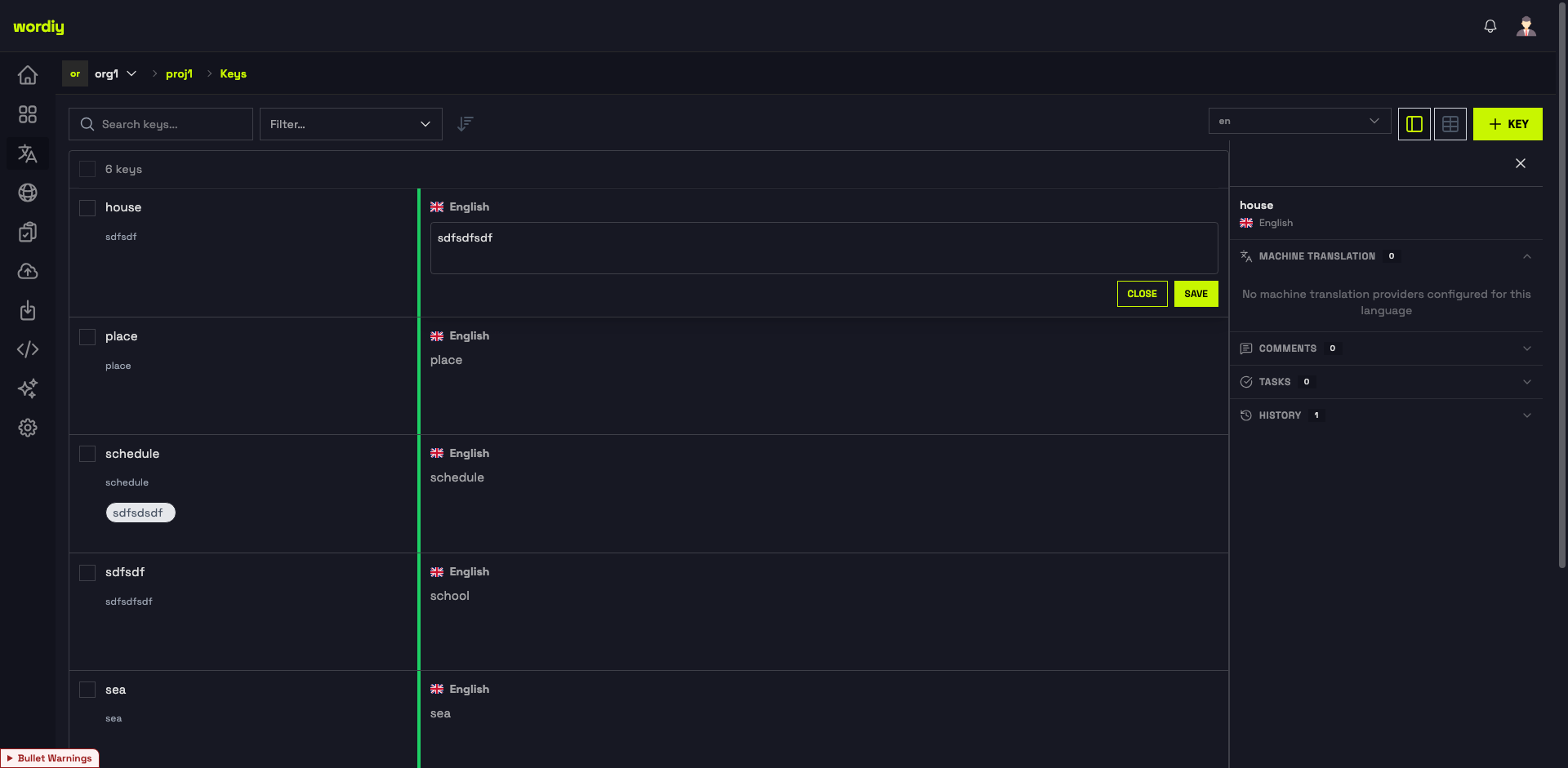
Translation Memory (TM) also shows similar translations:
- From this project — Previous translations
- From other projects — Team's historical translations
- AI suggestions — Machine translations
Using TM Suggestions
- Review suggestions in the panel
- Click to use a suggestion
- Edit if needed
- Save
Tip: Consistent use of TM ensures terminology consistency.
Keyboard Shortcuts
| Shortcut | Action |
|---|---|
Tab | Move to next translation |
Shift + Tab | Move to previous translation |
Ctrl/Cmd + S | Save translation |
Ctrl/Cmd + Enter | Submit for review |
Escape | Close editor |
Saving & Submitting
Save Draft
- Saves your translation locally
- Not yet visible to reviewers
- You can come back and edit
Click Save
Submit for Review
- Marks translation as complete
- Reviewers can approve/reject
- Shows as "Pending Review"
Click Submit for Review
Approve (Reviewers Only)
- Confirms translation is correct
- Marks as "Approved"
- Ready for export
Click Approve
Reject (Reviewers Only)
- Sends back for changes
- Includes feedback message
- Translator can revise
Click Reject and add a message
Best Practices
Before Translating
- Read comments and context
- Check translation memory
- Review similar strings
- Understand the terminology
While Translating
- Keep tone consistent
- Maintain proper length
- Preserve formatting
- Use placeholders correctly
After Translating
- Proofread carefully
- Check placeholders
- Verify character limits
- Submit for review
Common Issues
Placeholder Won't Insert
- Check placeholder name is correct
- Ensure you're in visual mode
- Verify the string supports placeholders
Character Limit Exceeded
- Use shorter synonyms
- Abbreviate where appropriate
- Check if space is optional
Can't Save Translation
- Check if field is required
- Verify no HTML/forbidden characters
- Ensure placeholders are valid
Translation Not Appearing
- Confirm it's marked "Approved"
- Check language is selected in export
- Verify file format