Manage Languages
Keep your project's languages up to date.
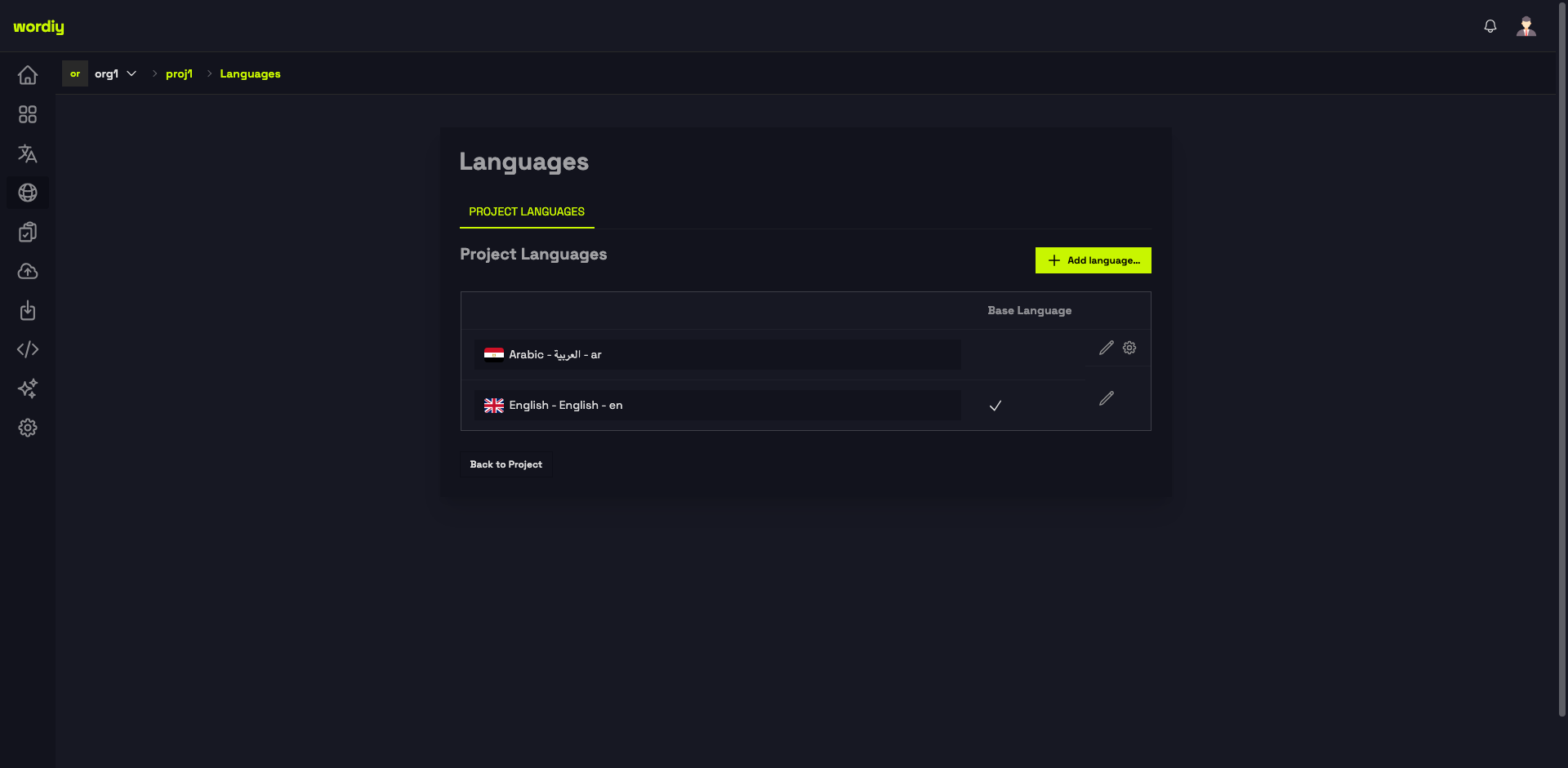
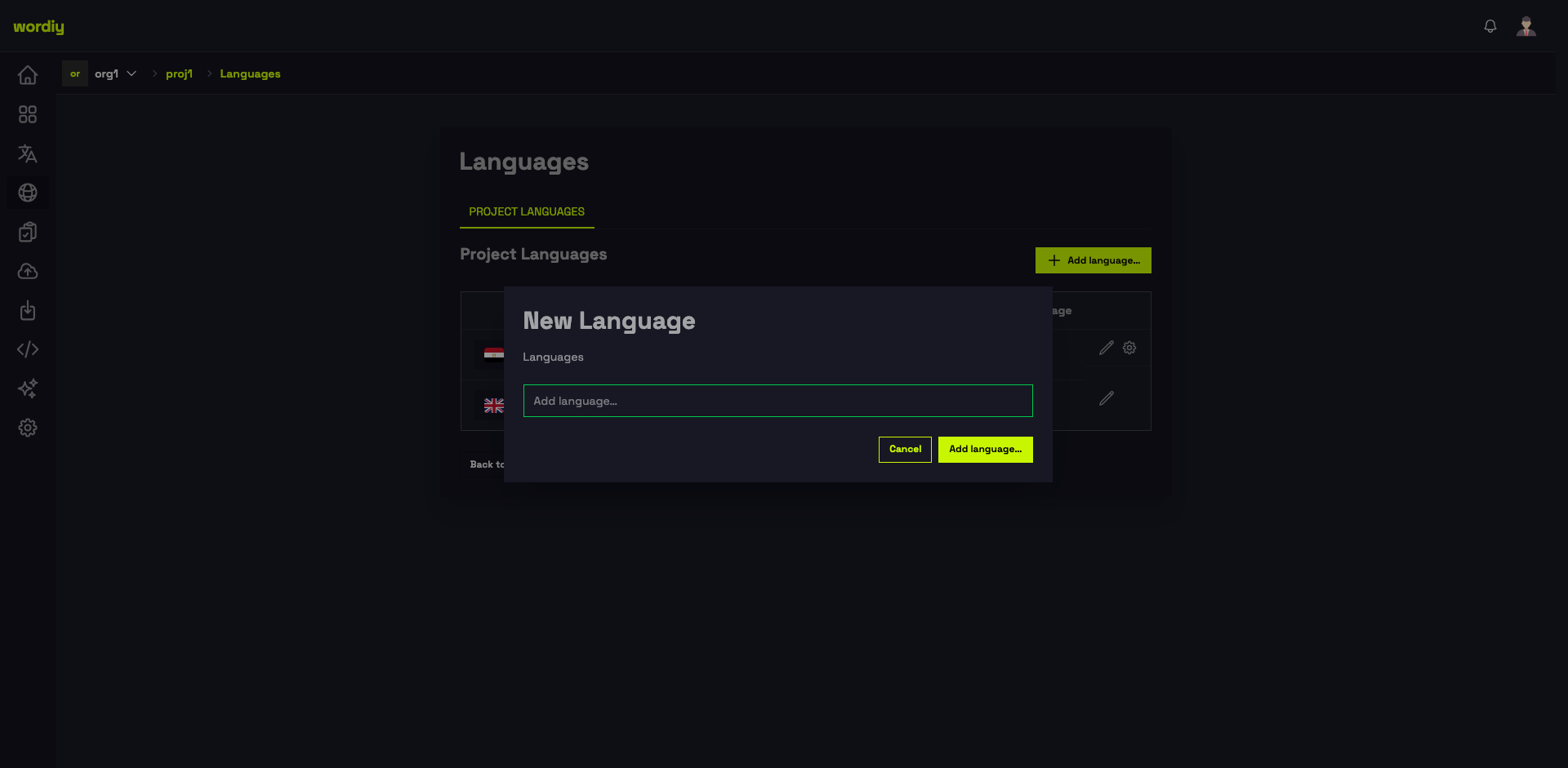
Add a Language
- Go to your project's Languages page
- Click + Add language...
- Type to search and select a language from the list
- Click Add language
Language Settings
Each language has a settings panel where you configure machine translation providers and automation behavior. Click the settings icon (⚙) next to a language to open it.
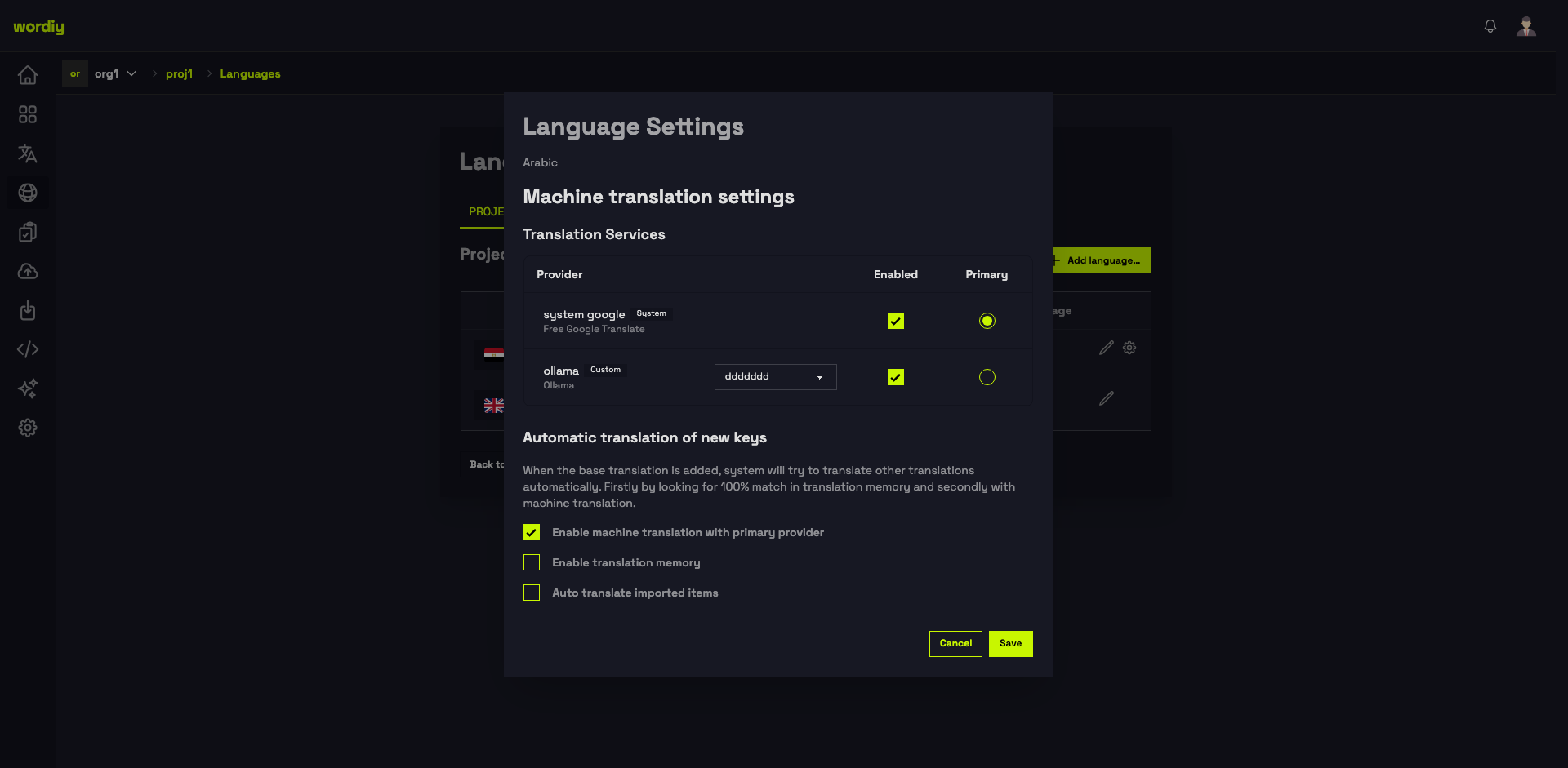
Translation Services
The Translation Services table lists all MT providers configured for your organization. For each language you can:
- Enabled — Toggle whether a provider is active for this language
- Primary — Select which provider is used by default when fetching suggestions
- Model — For custom providers (e.g. Ollama), choose the specific model to use
Automatic Translation of New Keys
Controls what happens when a new base-language string is added:
| Option | Description |
|---|---|
| Enable machine translation with primary provider | Automatically translates new keys using the primary MT provider |
| Enable translation memory | Fills translations from past matches before calling MT |
| Auto translate imported items | Runs automatic translation on strings added via file import |
Click Save to apply the settings for that language.
Remove a Language
- Go to your project's Languages page
- Click the settings icon next to the language
- Use the remove option and confirm deletion
Notes
- Your base language cannot be removed
- Removing a language also removes all translations in that language
- You can add the language back later