Invite Team Members
Build your team by inviting members to your organization.
Before You Start
You need:
- Owner or Admin role in the organization
- Team member's email address
- Know which organization role they should have (Owner, Admin, or Member)
Step-by-Step Guide
1. Navigate to Members Page
From your organization dashboard:
- Click on your Organization name at the top
- Go to Settings → Members
- You'll see the Members page with your current team and an "Invite Member" button
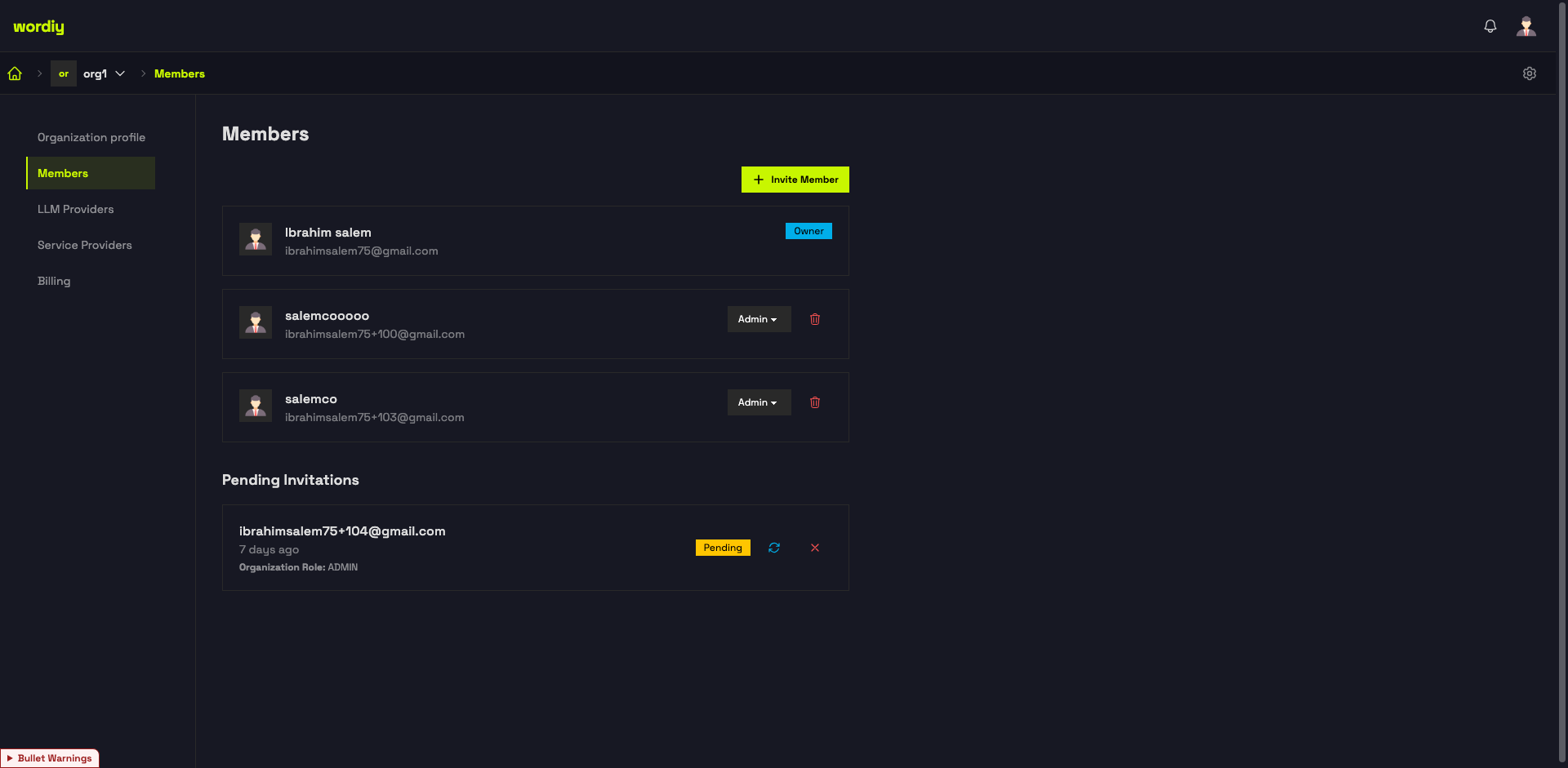
2. Click "Invite Member" Button
On the Members page, click the "Invite Member" button to open the invitation form.
3. Enter Email Address
In the invitation form:
- Enter the team member's email address in the "Email Address" field
- You can invite multiple people at once by separating email addresses with commas
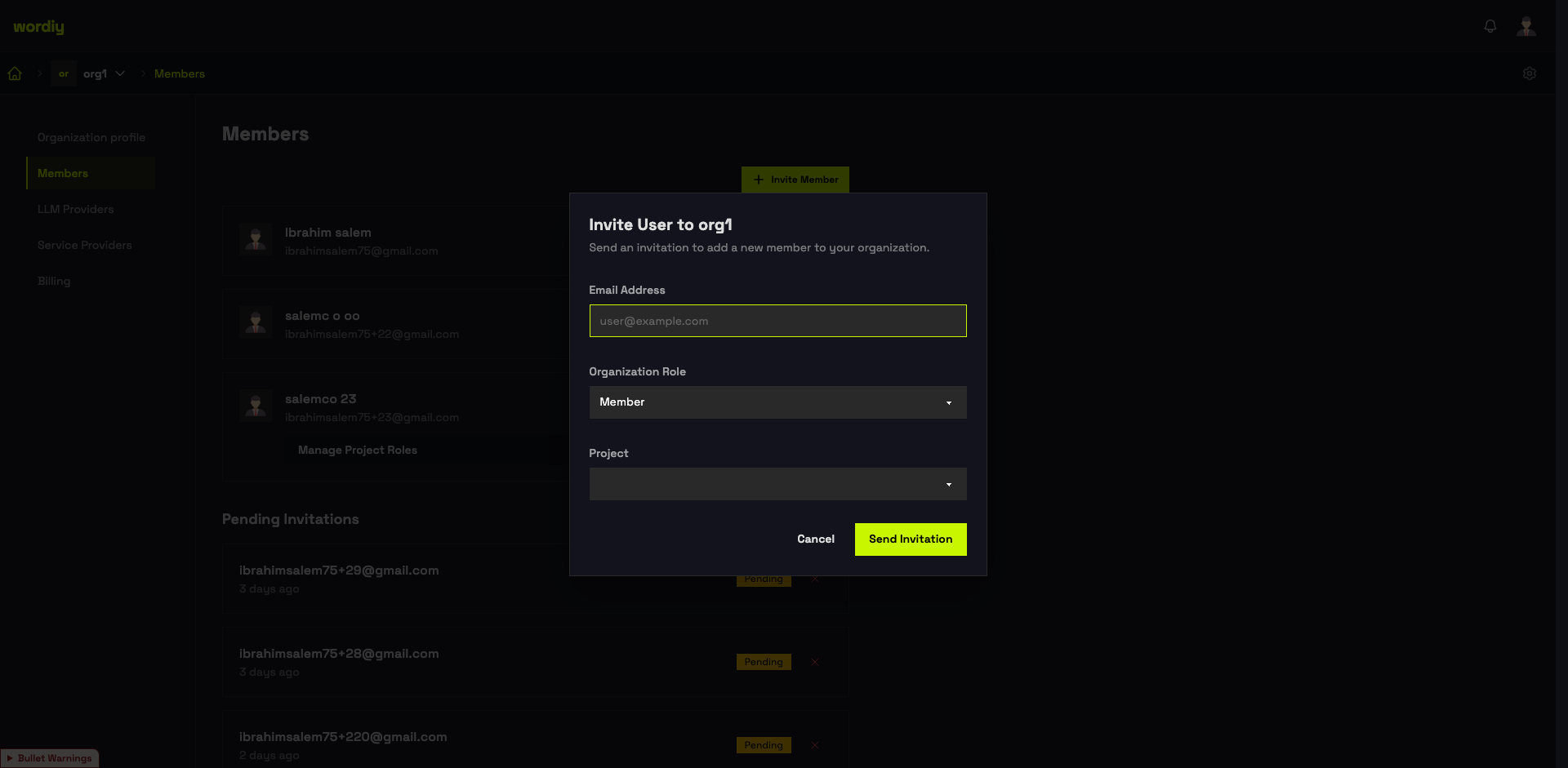
4. Select Organization Role
Choose the appropriate organization-level role:
- Owner — Full organization control (invite only if you trust them completely)
- Admin — Can manage team members and projects
- Member — Limited access, project-level permissions assigned separately
Learn more about roles and permissions.
5. (Optional) Assign Project Roles
If inviting as a Member, you can assign them specific roles in projects:
- Translator — Can create and edit translations
- Reviewer — Can review and approve translations
- Viewer — Read-only access
You can also assign project roles after they join.
6. Add Personal Message (Optional)
Include a personal message to welcome the team member:
- Explain why you're inviting them
- Share relevant links or context
- Set expectations for the role
Example:
"Hi Sarah! We're using Wordiy for our translation workflow. I've invited you to our organization to help with translations. Looking forward to collaborating!"
7. Send Invitation
Click "Send Invitation"
The team member will receive an email with:
- Your organization name
- Their assigned organization role
- A link to join Wordiy
- Your personal message (if included)
- Instructions on how to accept
What Happens Next
For New Wordiy Users
- They receive invitation email
- Click link in email
- Create Wordiy account
- Accept invitation
- Get access to your organization
For Existing Wordiy Users
- They receive invitation email
- Click link or go to account settings
- Accept invitation in "Pending Invitations"
- Immediately get access to organization
Managing Invitations
View Pending Invitations
Go to Organization → Members → Pending Invitations
You'll see:
- Invitee email
- Assigned organization role
- Date invited
- Status (pending, accepted, expired)
Resend Invitation
If someone didn't receive the email:
- Find invitation in Pending list
- Click "Resend"
- They'll get another copy
Cancel Invitation
Before they accept:
- Find invitation in Pending list
- Click "Cancel"
- They won't be able to accept anymore
Invitation Expiration
Invitations expire after 30 days
To add them later:
- Send a new invitation
- They can accept if they join Wordiy before expiration
Assigning Project Roles After Joining
Once a Member joins your organization, assign them specific project roles:
- Go to Members
- Find the member
- In the projects table, select their role (Translator, Reviewer, Viewer, or None)
- Save changes
Removing Members
If someone should no longer have access:
- Go to Members
- Find the member
- Click "Remove"
- Confirm removal
They'll immediately lose access to:
- All projects in organization
- Organization settings
- Team data
Note: Their translations are preserved for audit purposes.
Inviting Existing Team Members
If someone is already in another organization:
- Send them an invitation
- They'll see it in their pending invitations
- They can accept to join your organization
- They'll have access to both organizations
Best Practices
- Clear roles — Make sure invitees understand their role
- Security — Only assign Owner role to trusted administrators
- Gradual access — Start with Member role, assign specific projects as needed
- Early onboarding — Send welcome materials with invitation
- Regular reviews — Check team member status and roles monthly
- Communication — Let team know who's joining
Troubleshooting
Invitation Not Received
- Check spam/junk folder
- Verify email address is correct
- Resend invitation
Member Can't Accept
- Check if they have a Wordiy account
- Verify invitation hasn't expired
- Resend if needed
Need to Change Role
- Update their organization role in the Members list
- For project-specific roles, update the project role assignment