تعديل الترجمات
تعلّم كيفية تعديل الترجمات وإدارتها في Wordiy.
الوصول إلى محرر الترجمة
انتقل إلى مشروعك وافتح صفحة المفاتيح. تعرض كل صف اسم المفتاح على اليسار وترجمته الحالية على اليمين.
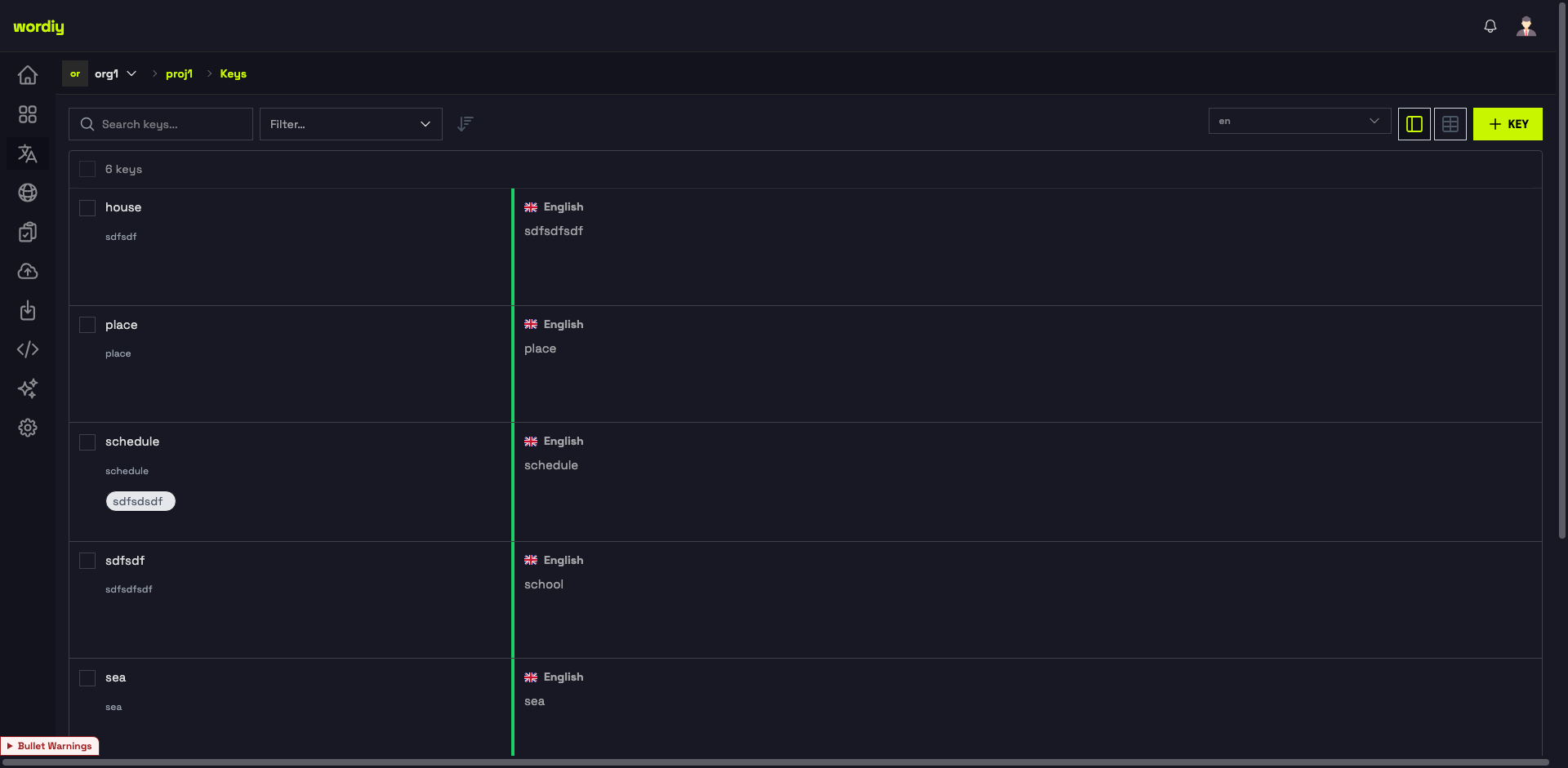
فتح ترجمة
- انتقل إلى مشروعك
- انقر على أي صف ترجمة لفتح المحرر المضمّن
- يفتح المحرر على الجانب الأيمن من الشاشة
عرض الترجمة
يعرض عرض الترجمات:
- اللغة المصدر (النص الأصلي) على اليسار
- اللغة الهدف (الترجمة) على اليمين
- التعليقات للسياق والملاحظات
- السجل لتتبع جميع التغييرات
- الحالة (معلّق، مقبول، مرفوض)
واجهة محرر الترجمة
انقر على أي ترجمة لفتح المحرر. يعرض اللوح الأيمن اقتراحات الترجمة الآلية والتعليقات والمهام والسجل.
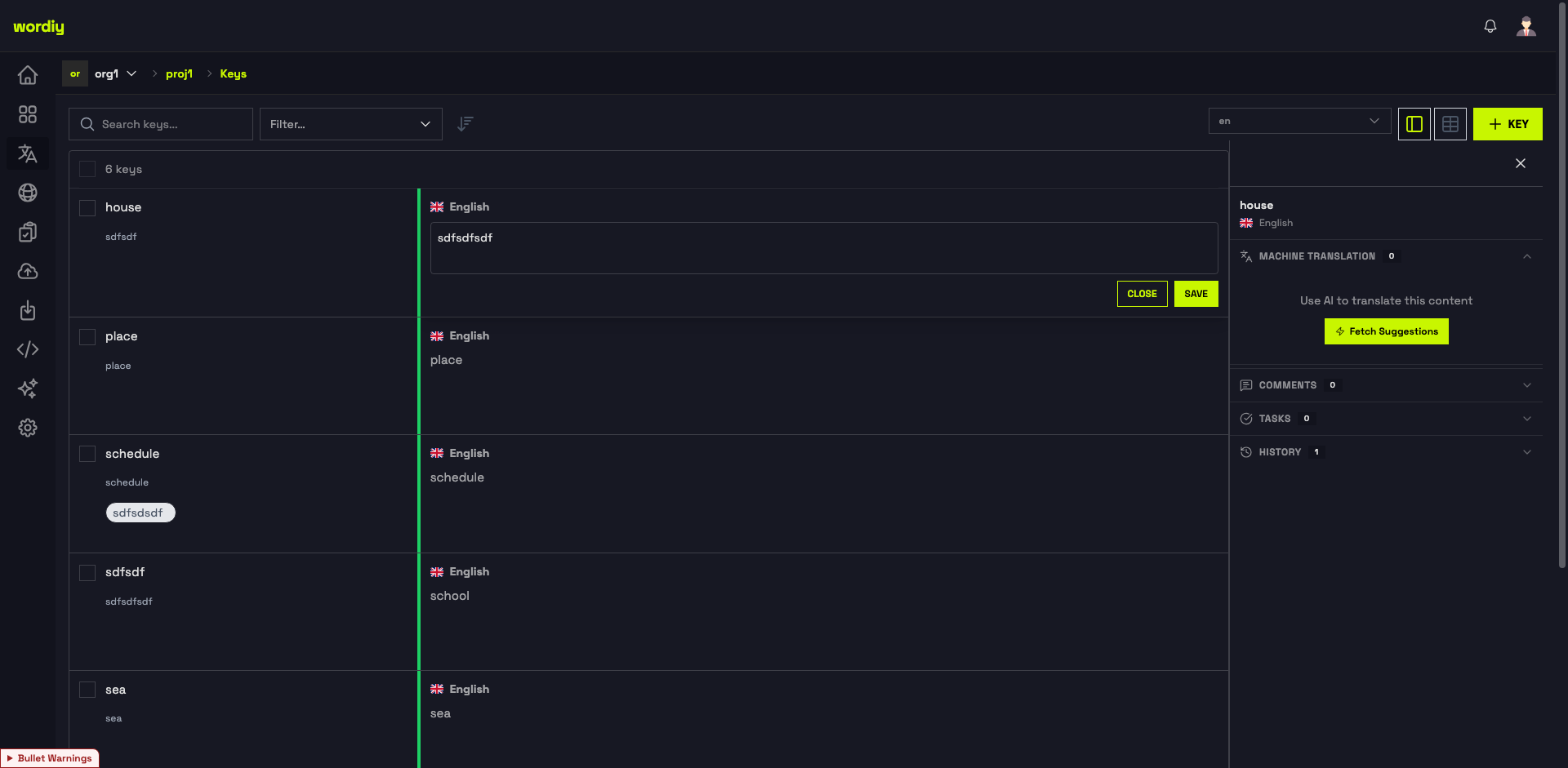
لوحة التحرير الرئيسية
يتضمن المحرر:
- حقل إدخال الترجمة — حيث تكتب الترجمة
- عداد الأحرف — يعرض الأحرف الحالية/القصوى (إن وُجد حد)
- مؤشرات العناصر النائبة — علامات مرئية للمحتوى الديناميكي
- اقتراحات الذكاء الاصطناعي — اقتراحات الترجمة الآلية
- ذاكرة الترجمة — ترجمات مشابهة من مشاريع سابقة
أوضاع المحرر
الوضع المرئي (الافتراضي)
- يعرض العناصر النائبة كمربعات مميزة
- سهولة النقر لإدراج العناصر النائبة
- الأفضل لمعظم المترجمين
- يعرض النص المنسق كما يظهر
وضع الكود
- يعرض النص الخام مع صياغة العناصر النائبة
- مفيد للتنسيق المعقد
- يتيح التعامل المباشر مع النص
- مناسب للمحررين المتقدمين
التبديل بين الوضعين: انقر زر "Code/Visual" في المحرر
العمل مع العناصر النائبة
أنواع العناصر النائبة
العناصر النائبة المتغيرة
مرحبًا {name}!
- تُستبدل بمحتوى ديناميكي
- شائعة في أسماء المستخدمين والتواريخ والأرقام
عناصر ICU النائبة
{count, plural, one {# عنصر} other {# عناصر}}
- تتعامل مع قواعد الجمع
- تدعم المنطق الشرطي
إدراج العناصر النائبة
في الوضع المرئي:
- انقر حيث تريد العنصر النائب
- انقر على العنصر النائب من الاقتراحات
- يُدرج تلقائيًا
في وضع الكود:
- اكتب صياغة العنصر النائب مباشرةً
- مثال:
{variable_name} - احفظ للتحقق من الصحة
عرض العناصر النائبة المفقودة
إذا كان عنصر نائب مفقودًا:
- ابحث عن مؤشر التحذير الأحمر
- انقر على العنصر النائب المفقود
- اختر إدراجه أو المتابعة
ترجمات الجمع
عندما يحتوي نص على أشكال جمع، يظهر كل شكل في حقل منفصل:
عنصر واحد: "عنصر واحد"
عناصر متعددة: "{count} عناصر"
يعرض كل حقل:
- رقم مثال — عدد العناصر (1، 5، إلخ)
- شكل الجمع — الشكل النحوي
- حقل الترجمة — حيث تكتب
نصائح لترجمات الجمع:
- استخدم أسماء متغيرات متسقة
- حافظ على بنية مشابهة عبر الأشكال
- اختبر بأرقام مثال
حدود الأحرف
بعض النصوص لها حدود للأحرف (مثل أزرار واجهة المستخدم والتسميات القصيرة):
الترجمة: "حفظ"
الحد: 10 أحرف
الحالي: 4/10 ✓
عند تجاوز الحد
- يتحول العداد إلى اللون الأحمر
- تظهر رسالة تحذير
- يمكنك الحفظ مع تأكيد
- لكن قد يؤثر ذلك على تخطيط واجهة المستخدم
أفضل الممارسات:
- حافظ على الترجمات ضمن الحدود قدر الإمكان
- استخدم مرادفات أقصر
- اختصر عند الضرورة
التعليقات والسياق
عرض التعليقات
توفر التعليقات سياقًا من المطورين:
- الغرض — لماذا يوجد هذا النص
- السياق — أين يظهر في التطبيق
- الأمثلة — كيف يُستخدم النص
إضافة تعليقات
- انقر لوح التعليقات على الجانب الأيمن من المحرر
- اكتب سؤالك أو ملاحظتك
- انقر نشر
- يمكن للآخرين الرد على تعليقك
تعليقات جيدة:
- اطلب توضيحًا
- أشر إلى مشكلات الترجمة
- اقترح تحسينات
- أبلغ عن مشكلات السياق
حالة الترجمة
يمكن أن يكون لكل ترجمة حالة:
| الحالة | المعنى | من يمكنه التعيين |
|---|---|---|
| معلّق | في انتظار المراجعة | المترجم |
| مقبول | تم التحقق من صحته | المراجع |
| مرفوض | يحتاج إلى تغييرات | المراجع |
| قيد التنفيذ | يُعمل عليه حاليًا | المترجم |
تقديم للمراجعة
- أكمل ترجمتك
- انقر تقديم للمراجعة
- اختر المراجعين (اختياري)
- أضف رسالة
- قدّم
ذاكرة الترجمة
يعرض اللوح الأيمن اقتراحات الترجمة الآلية. انقر جلب الاقتراحات للحصول على ترجمات مدعومة بالذكاء الاصطناعي للنص الحالي.
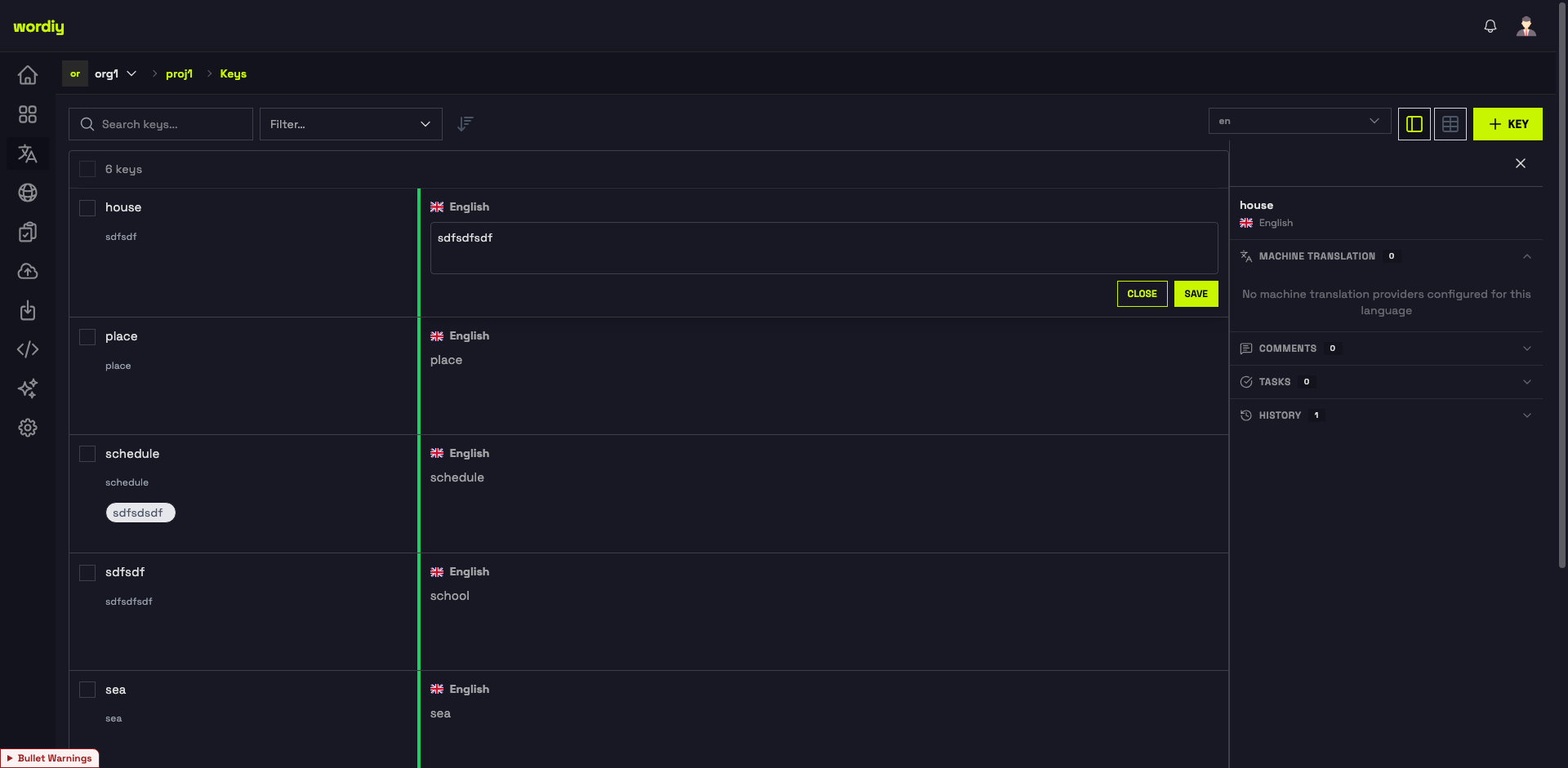
تعرض ذاكرة الترجمة أيضًا ترجمات مشابهة:
- من هذا المشروع — ترجمات سابقة
- من مشاريع أخرى — الترجمات التاريخية للفريق
- اقتراحات الذكاء الاصطناعي — ترجمات آلية
استخدام اقتراحات ذاكرة الترجمة
- راجع الاقتراحات في اللوح
- انقر لاستخدام اقتراح
- عدّله إذا لزم الأمر
- احفظ
نصيحة: الاستخدام المتسق لذاكرة الترجمة يضمن اتساق المصطلحات.
اختصارات لوحة المفاتيح
| الاختصار | الإجراء |
|---|---|
Tab | الانتقال إلى الترجمة التالية |
Shift + Tab | الانتقال إلى الترجمة السابقة |
Ctrl/Cmd + S | حفظ الترجمة |
Ctrl/Cmd + Enter | تقديم للمراجعة |
Escape | إغلاق المحرر |
الحفظ والتقديم
حفظ مسودة
- يحفظ ترجمتك محليًا
- غير مرئية للمراجعين بعد
- يمكنك العودة والتعديل
انقر حفظ
إرسال الترجمة للمراجعة
- يضع علامة على الترجمة كمكتملة
- يمكن للمراجعين القبول/الرفض
- يظهر كـ"في انتظار المراجعة"
انقر تقديم للمراجعة
القبول (للمراجعين فقط)
- يؤكد صحة الترجمة
- يضع علامة "مقبول"
- جاهز للتصدير
انقر قبول
الرفض (للمراجعين فقط)
- يُعيد للتعديل
- يتضمن رسالة تغذية راجعة
- يمكن للمترجم المراجعة
انقر رفض وأضف رسالة
أفضل الممارسات
قبل الترجمة
- اقرأ التعليقات والسياق
- تحقق من ذاكرة الترجمة
- راجع النصوص المشابهة
- افهم المصطلحات
أثناء الترجمة
- حافظ على نبرة متسقة
- راعِ الطول المناسب
- احتفظ بالتنسيق
- استخدم العناصر النائبة بشكل صحيح
بعد الترجمة
- راجع بعناية
- تحقق من العناصر النائبة
- تحقق من حدود الأحرف
- قدّم للمراجعة
المشكلات الشائعة
لا يمكن إدراج العنصر النائب
- تحقق من صحة اسم العنصر النائب
- تأكد من أنك في الوضع المرئي
- تحقق من أن النص يدعم العناصر النائبة
تجاوز حد الأحرف
- استخدم مرادفات أقصر
- اختصر عند الضرورة
- تحقق مما إذا كانت المسافة اختيارية
لا يمكن حفظ الترجمة
- تحقق مما إذا كان الحقل مطلوبًا
- تأكد من عدم وجود HTML أو أحرف محظورة
- تأكد من صحة العناصر النائبة
الترجمة لا تظهر
- تأكد من أنها مُعلَّمة كـ"مقبولة"
- تحقق من تحديد اللغة في التصدير
- تحقق من صيغة الملف